We have included the exported files from our demo, so you can quickly set up your site the same way the live demo is set up.
Before you begin, make sure that:
- all the required plugins are installed and activated (including One Click Demo Import),
- your license is activated (Appearance → Theme License) — the demo import is unlocked by an active license.
Then:
- Log in to your WordPress backend and navigate to Appearance > Import Demo Data.
- Click on Import Demo Data only once.
- That’s it! 🙂
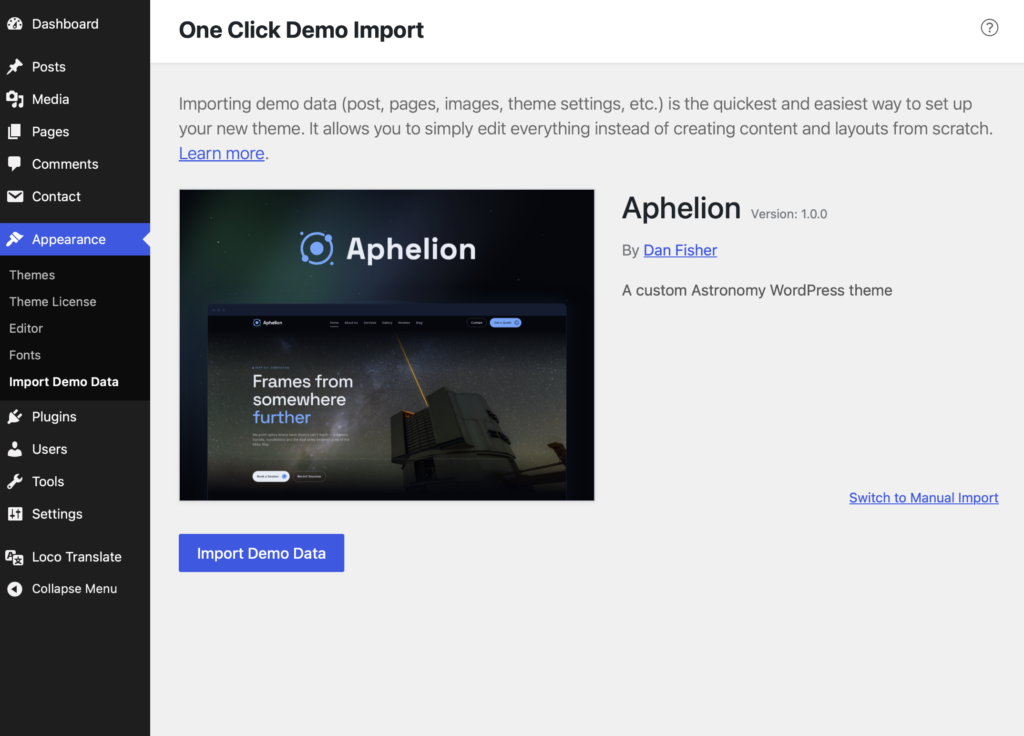
Now just wait for the importer to finish. The demo images download from our demo server during the import, so this might take a few minutes depending on your hosting speed. Afterwards your front page, blog page and navigation are set up automatically.