We have included the exported files from our demo, this allows you to quickly set up your theme the same way our demo is set up.
Before you begin, make sure all the required plugins are activated.
- Log-in to your WordPress backend and navigate to Appearance > Import Demo Data.
- Click on Import Demo Data only once.
- That’s it! 🙂
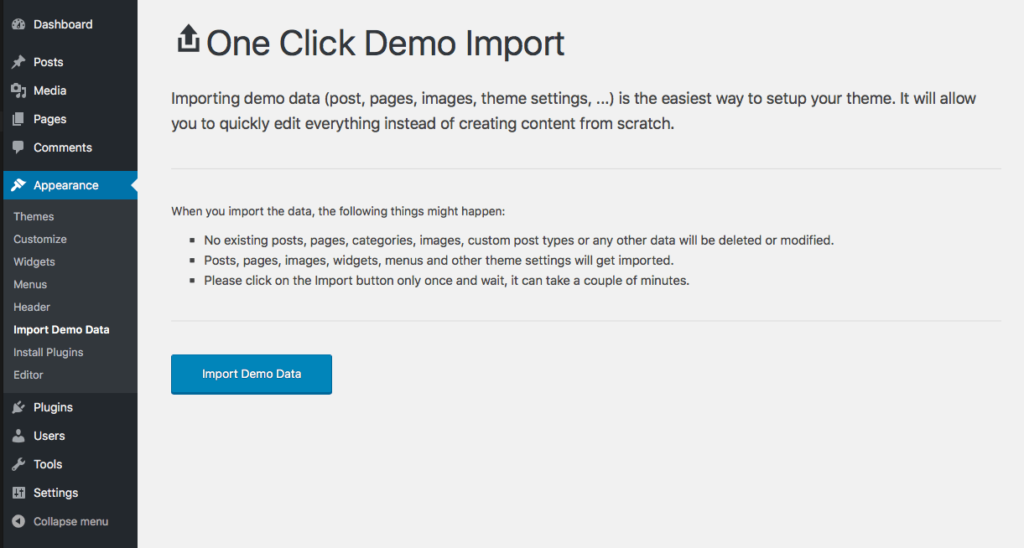
You now just need to wait for the importer to finish. This might take a few minutes depending on your hosting server speed.
The demo contact forms send messages to the site’s admin email address (Settings > General > Administration Email Address). To use a different address, go to Contact > Contact Forms, open the form and change To in the Mail tab.
If you imported the demo before Escapium 2.5.1, its contact forms were missing their email settings. Updating the theme to 2.5.1 or later repairs them once, so they send to the admin email address too. If you’ve already edited and saved a demo form yourself, it’s left as it is.