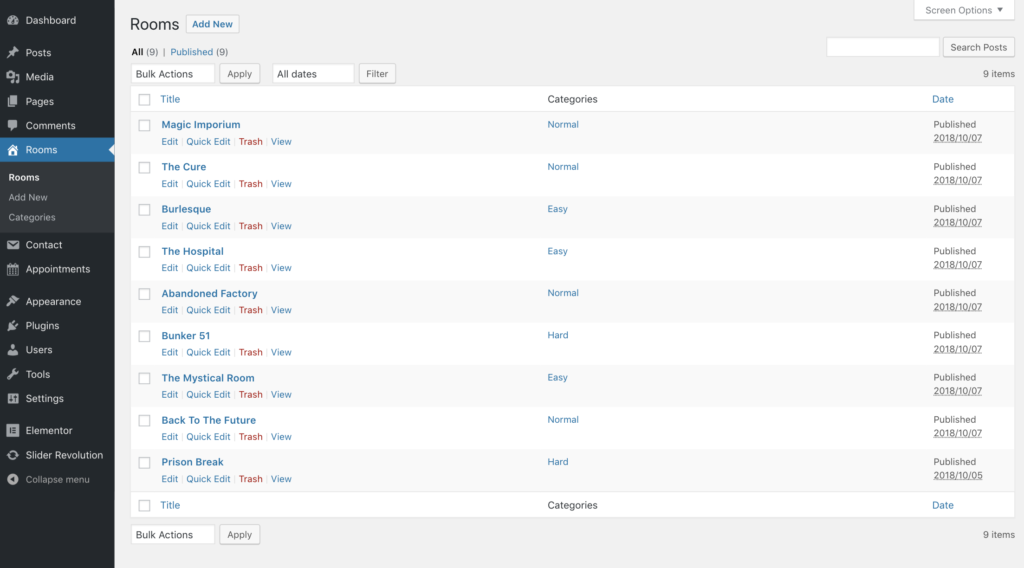
Escapium Custom Post Types plugin created to add to your WordPress site Custom Post Type Rooms.
Creating Room
To create Room please follow next steps:
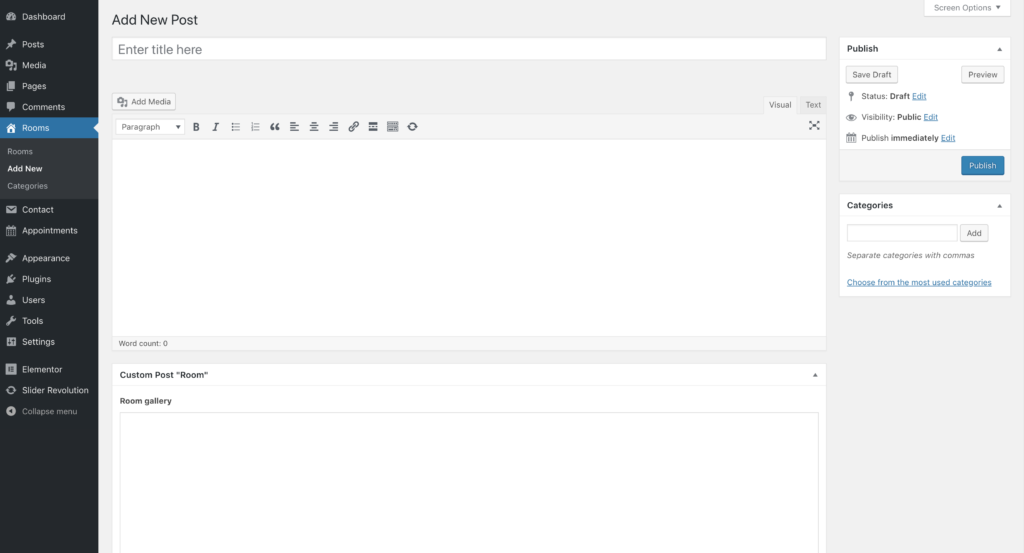
Go to Rooms → Add New
Enter room title and room description.
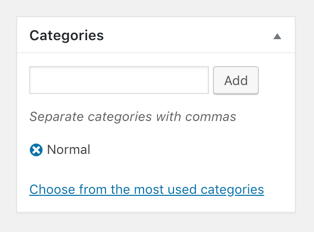
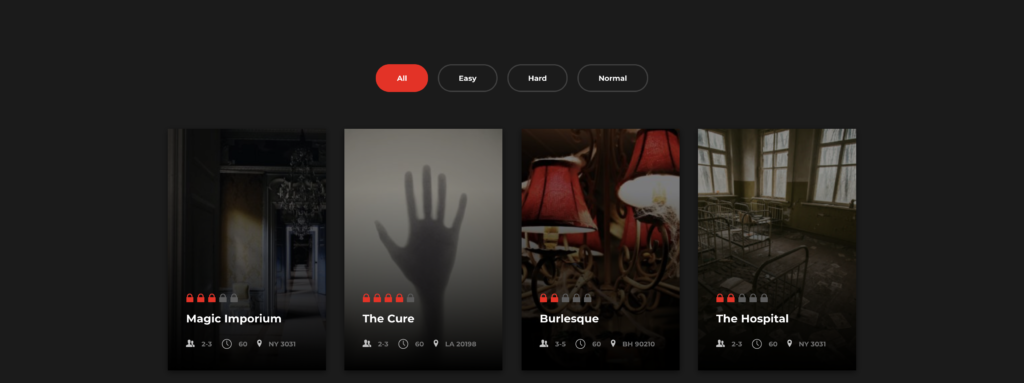
Add a category, e.g. NormalRoom categories can be used to filter rooms.
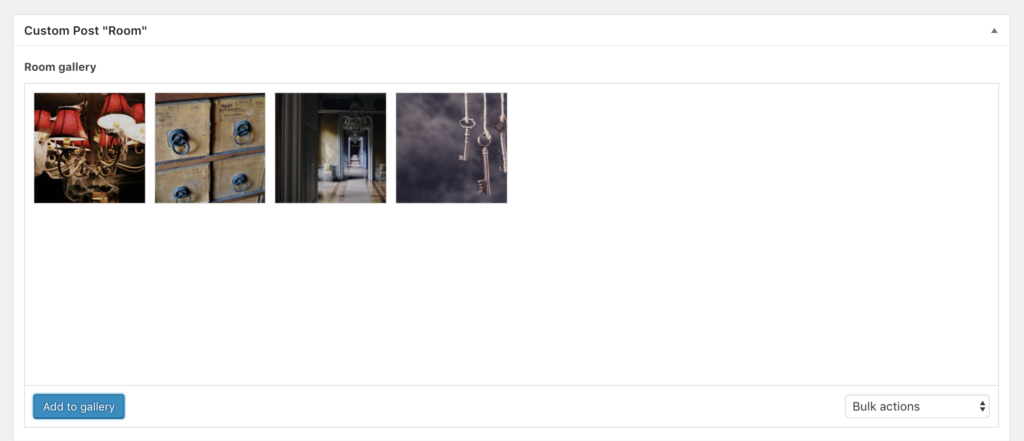
To add images to Room Slider, click the Add to gallery. Upload your images or choose from existing. Then click Select.Note, the first image is displayed as a room thumbnail.
Fill the following fields: Room rating,Number of players, Duration, Phone number, Email, Skype, Address, Button Text.
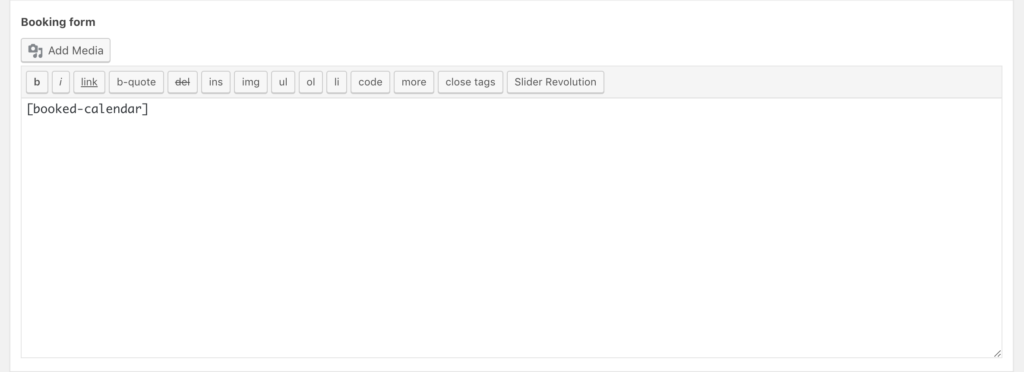
Add a Booked Shortcode to your Room, e.g. [booked-calendar]
Difficulty Scale
The Room rating field sets how hard a room is. Rooms show it as locks, stars or your own icon, which you choose under Appearance > Customize > Rooms > Common > Icons Type.
By default rooms are rated from 1 to 5. To rate them from 1 to 10 (Escapium 2.5.1 and later), go to Appearance > Customize > Rooms > Common, set Difficulty Scale to 1 to 10 and click Publish.
Changing the scale doesn’t change your ratings, so a room rated 4 shows 4 out of 10. Update the Room rating of each room to fit the new scale.